
By: Josiah Huckins - 6/06/2026
minute read
Every new PC or Mac has a honeymoon period where everything performs so well.
My journey with Windows 11 started this way. I built a new desktop which at the time of building was certainly a processing power house (specs included a Ryzen 7 CPU, a hefty 48GB of RAM and a 3080Ti GPU). However, here after just 8 months time I have to say the Win 11 trip has not been without many headaches.Apart from a custom start menu, Steam and a few other game launchers, I've run a mostly vanilla installation. I did make one registry modification to remove folder previews (and the only reason I did that was because of horrid latency in using Explorer out-of-the-box).
Most of my data is on an external drive or NAS and I've stayed current with published OS updates.
Now, I like to consider myself a power user. I know my way around msconfig, control panel, gpedit.msc, msinfo32, etc. I've written various powershell scripts and batch files to administer Windows. Working in IT, I've pushed out installations using DISM and other administrative tools. The point being, I'm no noob when it comes to Windows.
That being said, if carefully tuned I should expect a stable and fast experience.
This...was not the case.
Instead, over time even basic functions have become slow or error prone, namely opening folders, copying or moving items around (>= 50MB in size on average), start menu entries with inconsistent rendering and multiple games stuttering.
Can't Switch
You might be thinking, if Windows 11 isn't working for me, why don't I just switch to OSX or Linux. That's a fair point. For one, Steam gaming in Bazzite is a great experience with support for an ever growing list of titles. However, not all games are supported.More important than that though, for my desktop I have apps I depend on which were only developed for the Windows platform. (I do run OSX and Linux on other devices whenever possible.)
So I need Windows 11, but it's steadily becoming less usable. What to do?
My New Semiannual Process
I wanted to go back to the honeymoon. So I put together a plan for doing this in the least painful way I could think of.Before we get to that I should mention that Microsoft has a number of different options for resetting a PC, in particular push button reset. However in my case I have tasks I want to run that will not work in the execution context of Windows RE.
I also didn't want to have to manage automation updates with a limited set of executables and binaries that may prevent future changes from working.
I should also mention that a "golden" image approach using a .wim file was considered for this. The issue with that is the image has to change over time to keep up with configuration changes I want to keep.
Each version of the image would be adding more and more cruft from old versions of updates, .NET, cached files and other items.
On that note, really any Windows backup tool that includes the OS wouldn't be suitable for my use case.
I wanted a process that wipes the slate clean and starts over with just the latest versions of my apps and configurations. No cache, version history or junk taking up space, just reset, and run a restore script!
I've broken down the process into the following steps.
Step 1: - Ensure all data that must be retained is backed up to on an external drive, NAS or cloud service.
You should really be doing this regardless of whether you're resetting Windows or not. If you're not backing up your important data, please do it before going any further (with...anything).
This process is a full system reset, a clean slate, followed by script based restore.
Step 2: - Run backup script to inventory and backup system customizations, including registry edits, file associations and third-party drivers.
Step 3: - Prepare a windows setup script to apply customizations from step 2 (see below), and automate installation of ALL my apps.
Step 4: - Run the Reset PC option under the System > Recovery section of the Settings app, selecting the remove all data option when doing so.
Windows will take time to reset.
Step 5: - When the reset is done, sign-in or setup a local account. Once in Windows, immediately notice a speedier experience.
To restore apps, their settings and system customizations, run the setup script.
About the Scripts
The backup script automates extracting third-party drivers, various registry settings and file associations.The setup script is very much specific to my build, but looking at it you can see how to restore apps and their settings.
Winget is the best part of this automation!
Seriously, if you gain anything from this post, let it be to start using Winget for all your Windows app installs.
I no longer go through a browser or app store search, download and run a wizard.
All my apps are now installed using the following command:
winget install --force -e --id app.name --silent --accept-source-agreements --accept-package-agreements
Where app.name is the name of the app I want to install.
Not sure what the app name is? You can search for it via:
winget search "app name"
The search results should show a release version of your app, among other options.
Replace app.name above with the relevant value from the Id column in the search results. For example, I use Prism Launcher for a certain block building/breaking sandbox game.
I can search for it and see the results, then install it using the Id in the search results:


Beyond app installs, I can automate their configurations using the reg command to add registry settings. (Proceed with caution.)
I can also automate Windows settings in this manner or via other built-in commands.
I've started updating the script to include any app or system changes I make. It can get a little tedious, but having all my changes tracked to apply after a Windows reset is well worth it. With this setup I have a clean record of changes and most importantly, I don't miss anything.
Icing on the cake, I can run the script on a new PC and have my custom setup applied there without manual work!
There are certain tasks a script just cannot do (or rather it can do but not safely). For instance, I configure cloud storage sync to point to a volume on an external drive. The service I use offers no API or CLI to configure this. I could use Powershell UI automation assemblies to click through settings in the cloud service's wizard, but that's brittle. As soon as they publish an updated UI, my script will break.
So in that case, I manually configure it after script execution.
Data Restoration
If you completed a backup per the steps above, you should restore your data after the script completes execution.Pro tip: if you keep your data on an external drive or NAS, you might consider configuring a cloud storage service to use that location for your local files. Doing this, I try to keep important stuff on an external drive synced to my cloud provider of choice. If Windows has a catastrophic failure (or purposeful reset), my data remains and is ready for use when Windows is back to a healthy state. If my external drive fails, my data is ready to restore from the cloud to a new device.
Added Bonus: Windows Tweaks
You may have noticed the following external script call in my setup script above: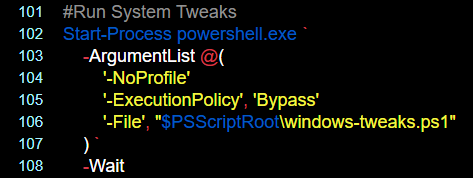
This script makes a few handpicked configuration changes which are part of this awesome project.
Among them for my setup, I disabled Windows AI, Onedrive and enabled end task with a right click.
You may be interested in adding this to your setup process. Definitely read about this and tune it to your liking at the link above.
Final Thoughts
I'm still a massive Linux fan, but your Windows install can be stable and decent. The process outlined above isn't as ideal as a truly atomic system setup, but it's far better than dealing with an ever increasingly sluggish system, albeit one you've highly customized and not at all ready to start over from.I'm living in a constantly clean, consistent and fast Windows world, join me!